
TekMatix Blog & Help Articles
Use the search bar below to look for help articles you need.
How To Use Company-Based Workflows in Tekmatix to Automate B2B Processes
How To Use Company-Based Workflows in Tekmatix to Automate B2B Processes
Managing B2B accounts often means coordinating multiple contacts under a single company. With Tekmatix’s Company-Based Workflows, you can automate actions at the account level on Company records themselves ensuring onboarding, data sync, and lifecycle updates happen seamlessly across all associated contacts.
This guide will show you how to set up Company-Based Workflows, with a practical scenario to illustrate their real-world impact.
Why Company-Based Workflows Matter
Traditional contact-based automation handles one contact at a time. In B2B settings, however, an account can have multiple stakeholders, each needing aligned processes. Company-Based Workflows solve this by:
Automating onboarding for entire companies, not just individual contacts.
Synchronizing Company and Contact data for consistency.
Maintaining CRM hygiene by clearing outdated or temporary information.
Ensuring all stakeholders follow the same lifecycle stages.
Combining seamlessly with contact-level workflows for end-to-end automation.

Sample Scenario
Scenario:
A digital agency signs a new corporate client, “TechNova Solutions,” with five key contacts. Each contact needs onboarding emails, CRM tagging, and task assignments—but these must align with the company’s lifecycle stage.
Solution:
Admin creates a Company-Based Workflow triggered when a new Company is created.
The workflow:
Assigns an Account Owner for the Company.
Updates all associated Contacts with a “New Client” tag.
Sends welcome emails to each contact.
Clears temporary fields like “Trial Status” after 30 days.
Result: Streamlined onboarding, consistent data, and automated tasks without manual coordination.
Step-By-Step Guide: Setting Up Company-Based Workflows
Step 1: Create the Workflow
Navigate to Automated Workflows → Workflows → + Create Workflow.
Select Company-Based Workflow as the type.

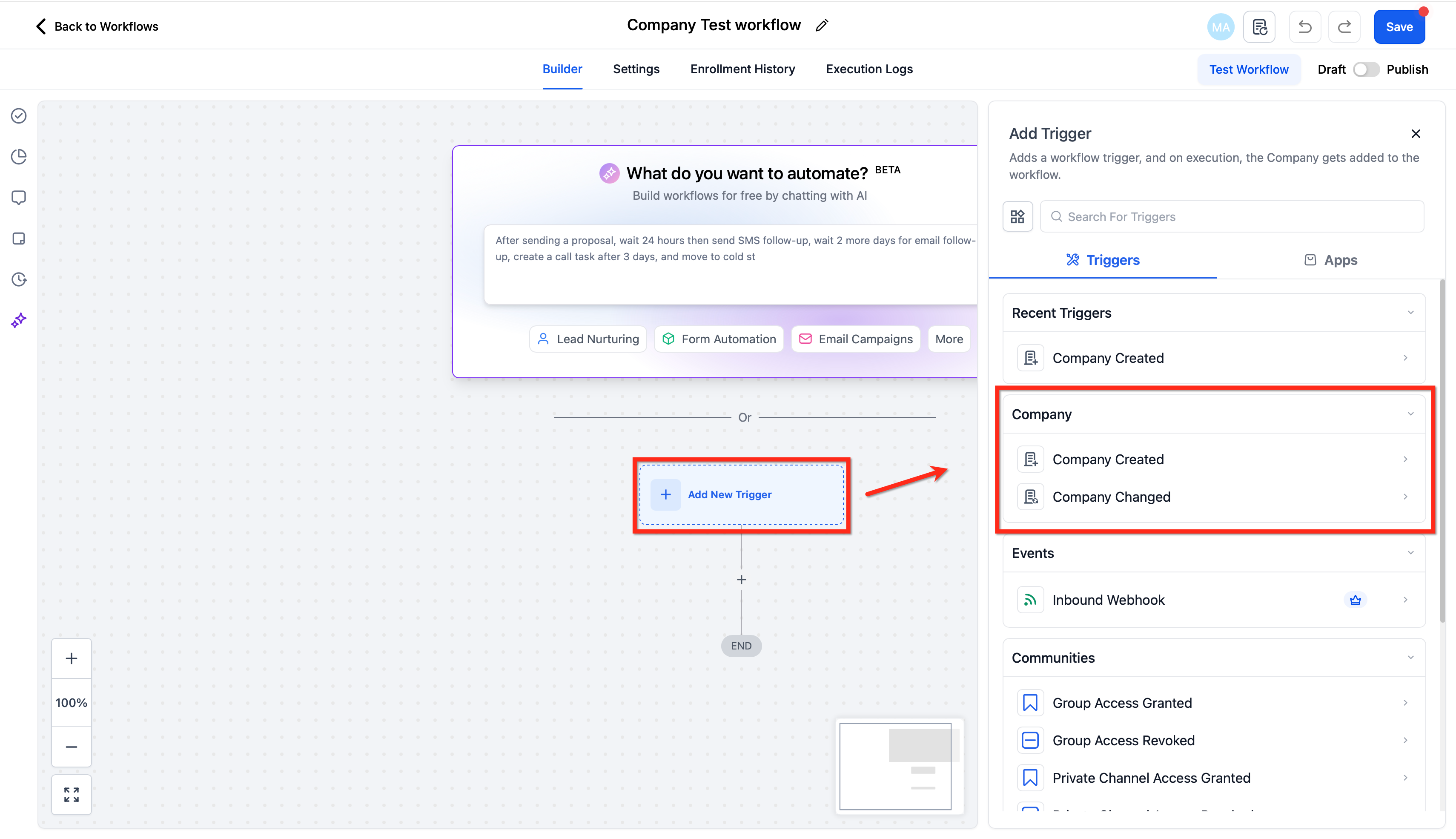
Step 2: Add a Trigger
Choose a starting event for your workflow:
Company Created: Runs when a new Company record is added.
Company Changed: Runs when one or more Company fields are updated.
Optional: Use filters to narrow scope (e.g., by owner, tags, or specific field values).
Step 3: Add Actions
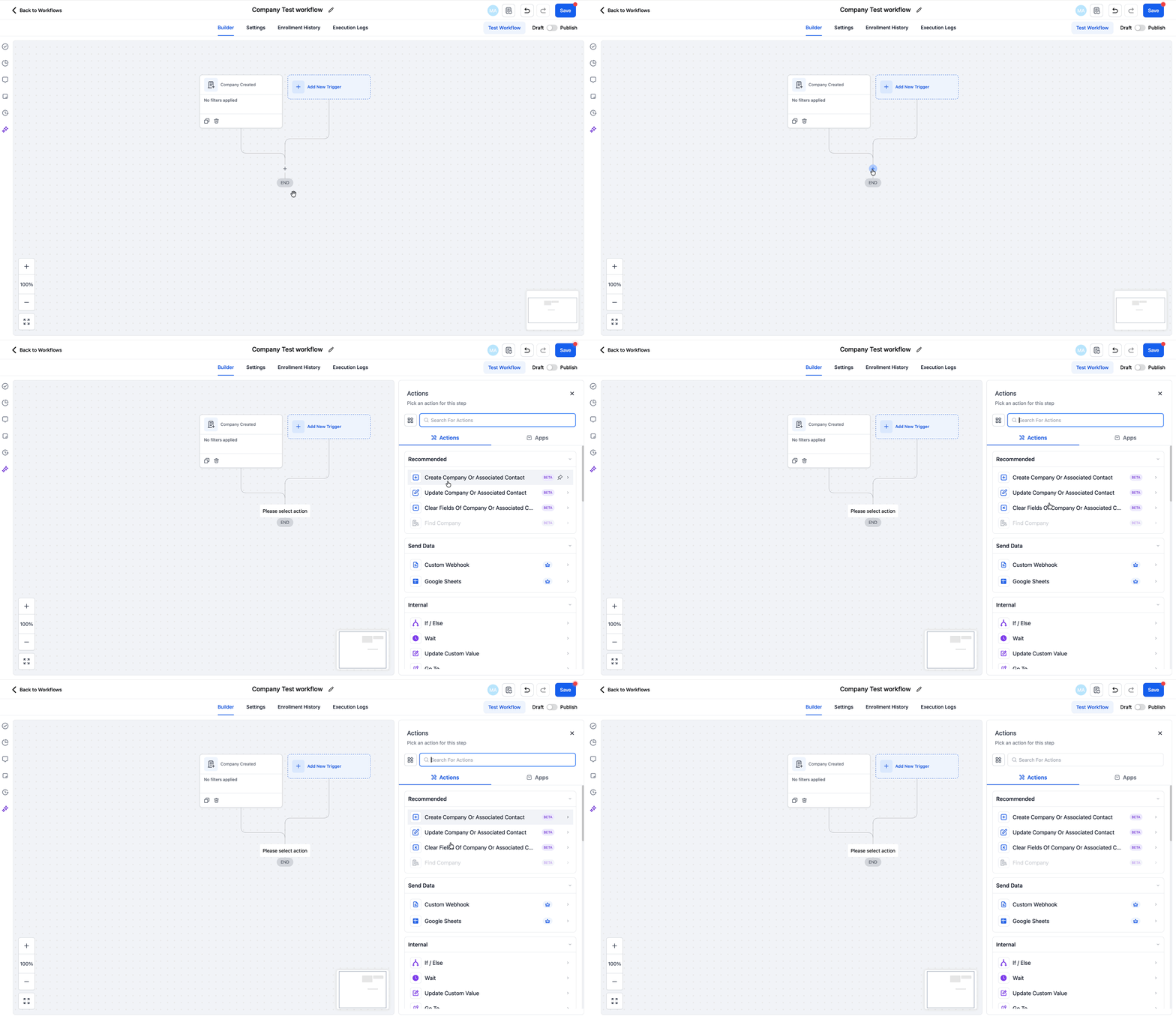
Drag in actions that define your workflow:
Update Company or Associated Contact: Sync fields, assign owners, or push lifecycle updates.
Create Company or Associated Contact: Build new records from forms or integrations.
Clear Fields: Remove outdated information to maintain clean CRM data.
You can choose to apply actions to associated contacts where applicable.
Step 4: Add Logic, Delays, or Branches (Optional)
Use Conditions or If/Else steps to control which companies or contacts are affected.
Use Wait steps to schedule actions after delays.
Avoid loops by ensuring bi-directional updates have guardrails.
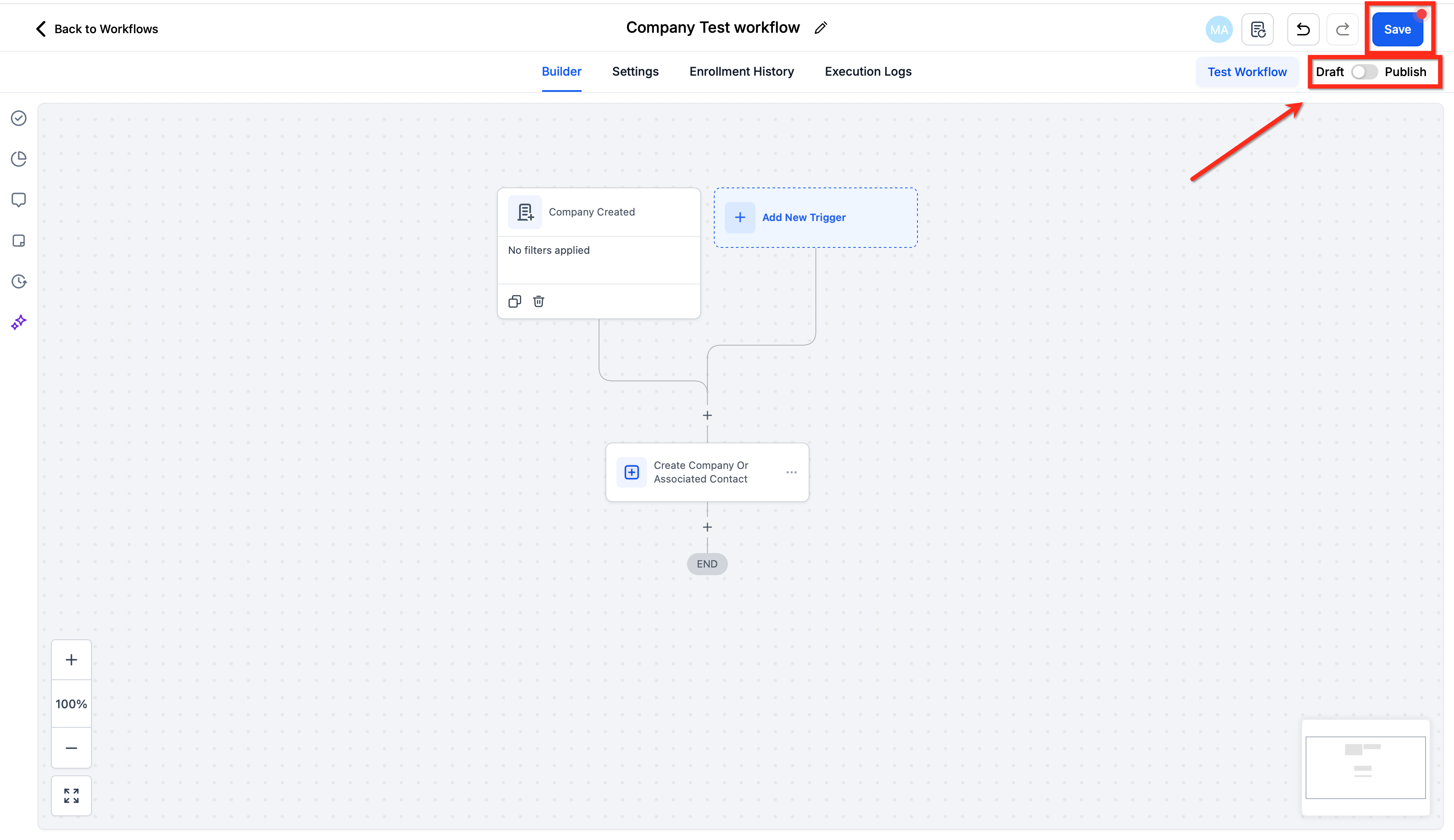
Step 5: Test and Publish
Enroll a small batch of companies for testing.
Review execution logs for successful actions and any errors.
Publish workflow once validated.
Common Use Cases
Onboarding New Client Companies: Assign Account Owner, lifecycle stage, and notify all contacts.
Sync Lifecycle Stages: Mirror company health or status changes to all associated contacts.
Data Hygiene: Clear temporary promotions or discounts after set durations.
Lead Intake: Create a Company from a B2B lead form and associate the submitting contact automatically.
Attribute Sync: Push company-level attributes (industry, segment, plan tier) to all contacts for reporting and segmentation.
Frequently Asked Questions
Q: Can one workflow update both the Company and its contacts?
Yes. Use Update Company or Associated Contact and enable the option to apply changes to associated contacts.
Q: Can I create a Company from a Contact workflow?
Yes. Use Create Associated Company in a contact-based workflow.
Q: How do I avoid update loops?
Use conditions such as “last updated by automation” flags and avoid bi-directional updates without safeguards.
Q: Can I bulk-enroll existing companies?
Yes. Filter or use Smart Lists to target a batch, test, and then scale.
Q: What permissions are required?
Access to Workflows and permission to view/update Companies and Contacts in the sub-account.
Next Steps
Identify B2B processes that need company-level automation.
Set up a Company-Based Workflow in Tekmatix and test on a small batch of accounts.
Combine with contact-level workflows for end-to-end automation.
Monitor logs to ensure data consistency and prevent duplicates or loops.
Train your team on interpreting workflow outcomes and maintaining CRM hygiene.

Copyright © 2026 TekMatix. All rights reserved | [email protected]