
TekMatix Blog & Help Articles
Use the search bar below to look for help articles you need.
How To Automate Post-Purchase Actions Using the Order Submitted Workflow Trigger in Tekmatix
How To Automate Post-Purchase Actions Using the Order Submitted Workflow Trigger in Tekmatix
Overview
When a customer completes a payment, what happens next?
With Tekmatix, you don’t need to rely on manual follow-ups. The Order Submitted workflow trigger allows you to automatically launch actions the moment a payment is successfully completed — whether it’s a one-time purchase or a recurring invoice.
This guide explains what the Order Submitted trigger does, how to set it up step by step, and how to use it effectively, including PayPal support and a real-world example.
Why the Order Submitted Trigger Is Important
The moment after payment is one of the most critical touchpoints in the customer journey. Automating this step helps you:
Send instant confirmation emails
Trigger onboarding or fulfillment workflows
Notify internal teams automatically
Update customer records without manual work
Deliver a smooth, professional customer experience
Instead of reacting to purchases, Tekmatix lets you respond automatically and instantly.
What Is the “Order Submitted” Workflow Trigger?
The Order Submitted trigger activates a workflow after a successful payment is completed through a Payment Link or Invoice.
Once triggered, Tekmatix can automatically run actions such as:
Sending confirmation or receipt emails
Adding tags or updating contact details
Creating internal notifications
Starting onboarding or upsell sequences
🔔 Important: This trigger only fires for successful payments. Failed or incomplete payments will not activate the workflow.
Step-by-Step: How To Set Up the Order Submitted Trigger
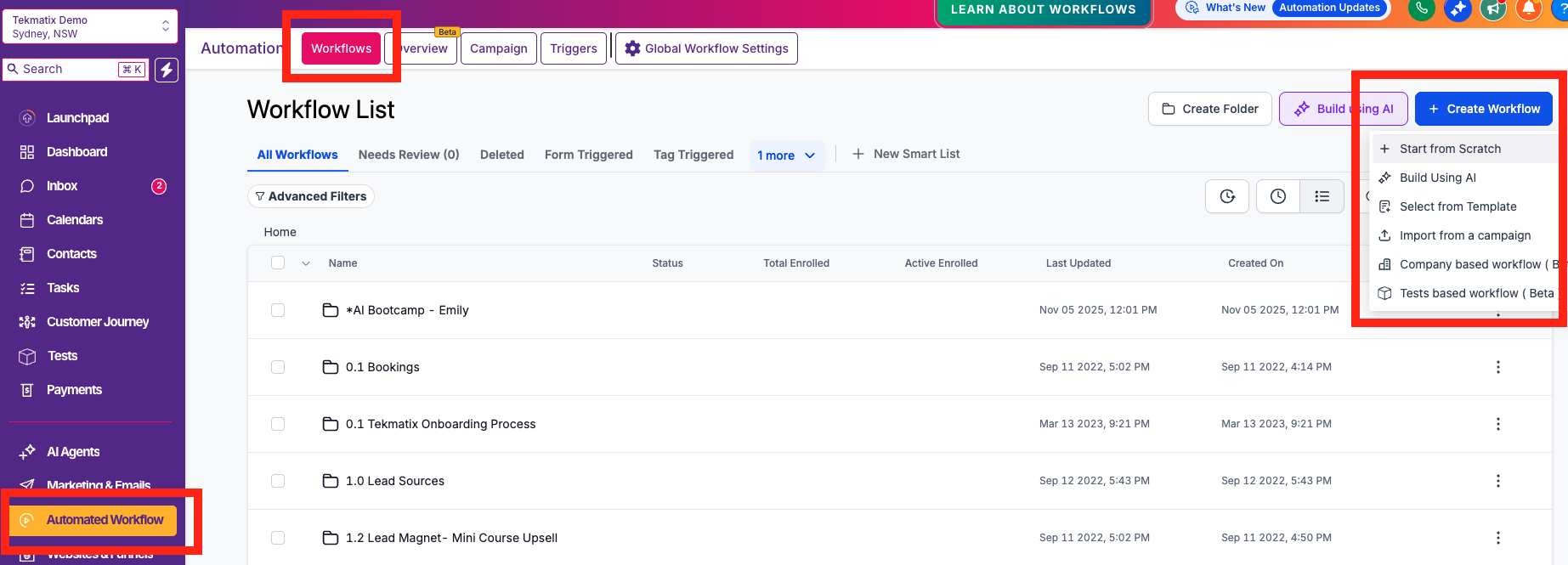
Step 1: Go to Automation Settings
Navigate to Automated Workflows
Click Workflows
Create Workflow or open an existing one
Step 2: Select the Payment Link Workflow Trigger
Choose Payment Links Workflow
Select Order Submitted as the trigger
This ensures the workflow activates immediately after a successful order.

Step 3: (Optional) Add Filters
You can refine when the workflow runs by using filters such as:
Payment Mode (Stripe or PayPal)
One-time purchase vs recurring invoice
Specific products or offers
This allows for custom automations per payment type.
Step 4: Configure Your Workflow Actions
Common actions include:
Send confirmation or onboarding emails
Apply tags to contacts
Notify your sales or fulfillment team
Update CRM fields or deal stages
Step 5: Save and Activate
Once configured, save and publish the workflow.
Your automation will now run automatically after every successful order.
Using PayPal with the Order Submitted Trigger
Tekmatix supports PayPal payments, including recurring invoices, with a few important notes.
Key Things to Know About PayPal Support
PayPal works with recurring invoices
PayPal does not support auto-payment for recurring invoices
No additional configuration is required once PayPal is connected
As long as auto-payment is disabled, customers will be able to choose PayPal when paying invoices.
Sample Use Case: How This Works in Real Life
Scenario: Online Coaching Program
Maria runs a coaching business using Tekmatix and sells a monthly coaching plan through a payment link.
Here’s how she uses the Order Submitted trigger:
A customer completes payment via PayPal
The Order Submitted workflow fires
Tekmatix automatically:
Sends a payment confirmation email
Applies a “Paid – Active Client” tag
Sends onboarding instructions
Notifies Maria’s team in Slack
The customer receives instant access — no manual follow-up needed
Result:
Maria saves hours of admin work and delivers a polished, professional onboarding experience.
Frequently Asked Questions
What is the Order Submitted trigger used for?
It starts automated workflows after a successful purchase. This includes confirmation emails, onboarding steps, internal notifications, and CRM updates.
Does the Order Submitted trigger work with PayPal?
Yes. It supports both Stripe and PayPal, including PayPal recurring invoices (without auto-payment enabled).
Can I use it for one-time and recurring purchases?
Yes. You can apply filters in your workflow to separate one-time payments from subscriptions.
How do I tell if the payment came from PayPal or Stripe?
Use the Payment Mode filter inside the workflow to create conditional actions based on the payment provider.
Does the trigger fire for failed payments?
No. The trigger only activates after a successful payment confirmation.
Can I send emails after a PayPal recurring payment?
Yes. You can either:
Use the Order Submitted trigger + Send Email action, or
Use Sales Receipts under Payments → Settings
Best Practices for Using This Trigger
Keep confirmation emails short and clear
Use filters to avoid over-triggering workflows
Pair with tags for easy customer tracking
Combine with onboarding or upsell workflows for maximum impact

Copyright © 2026 TekMatix. All rights reserved | [email protected]