
TekMatix Blog & Help Articles
Use the search bar below to look for help articles you need.

How To Use the New Courses Dashboard in Tekmatix to Track and Improve Course Performance
How To Use the New Courses Dashboard in Tekmatix to Track and Improve Course Performance
For course creators, staying on top of enrollment, engagement, and revenue metrics is critical. With Tekmatix’s New Courses Dashboard, you get a fast, data-rich snapshot of your courses, helping you make smarter decisions and optimize learner outcomes.
This guide walks you through reading the dashboard, accessing insights, and using the metrics to improve your course strategy.
Why the New Courses Dashboard Matters
Course performance can fluctuate quickly, and without clear insights, creators may miss opportunities to improve engagement or revenue. The Tekmatix Courses Dashboard helps you:
See which courses are performing best and which need attention.
Track revenue and average order value (AOV) at a glance.
Identify where learners drop off in your course journey.
Access member-level analytics with one click.
Make data-driven decisions to boost completions and revenue.
Sample Scenario
Scenario:
You run a digital marketing course platform with 5 different courses. You notice that enrollments are strong in your “Social Media Marketing” course but low in “Email Marketing Mastery.”
Using the Dashboard:
The Top & Least Performing Courses section highlights which courses need improvement.
Revenue insights show total earnings and AOV per course.
The Course Progress Funnel reveals that many learners sign up for “Email Marketing Mastery” but drop off after the first module.
With this information, you can:
Update course content or engagement strategies for the underperforming course.
Experiment with pricing or promotional offers to increase checkouts.
Monitor improvements over time using the dashboard’s 30-day snapshot.
Step-By-Step Guide: Using the Courses Dashboard in Tekmatix
Step 1: Access the Dashboard
Log in to your Tekmatix account.
Navigate to Courses & Memberships → Courses.
The Dashboard opens by default for course creators.
Tip: Pin the dashboard to your sidebar for one-click access.

Step 2: Understand the Key Metrics
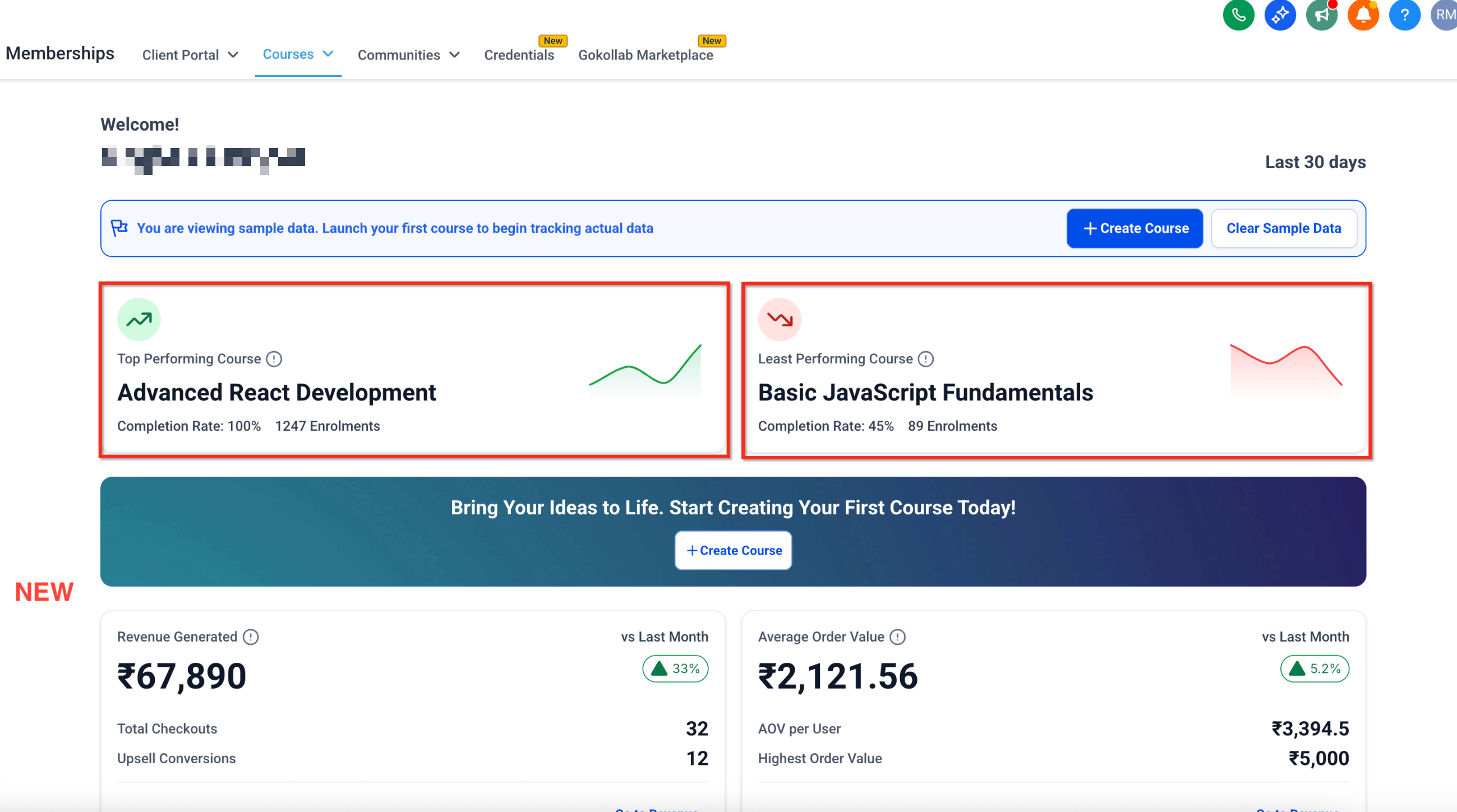
Top & Least Performing Courses
Top Performing Course: Highest engagement and completion in the past 30 days.
Least Performing Course: Lowest engagement or completion rate.
Metrics include:
Completion Rate: % of learners who finished the course.
Enrollments: Total number of learners.
Click on the course name to access Course Details Page for deeper insights.
Revenue Generated
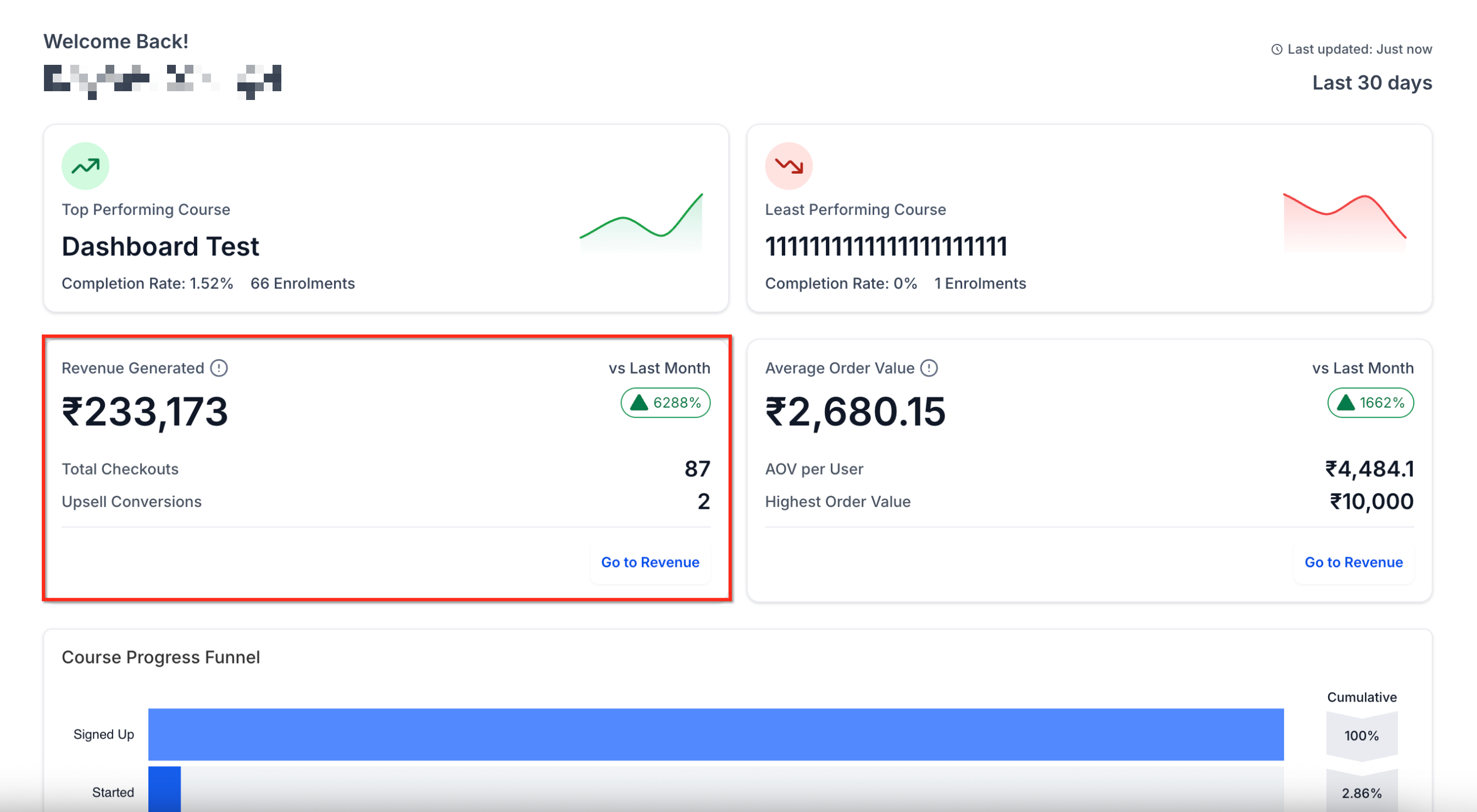
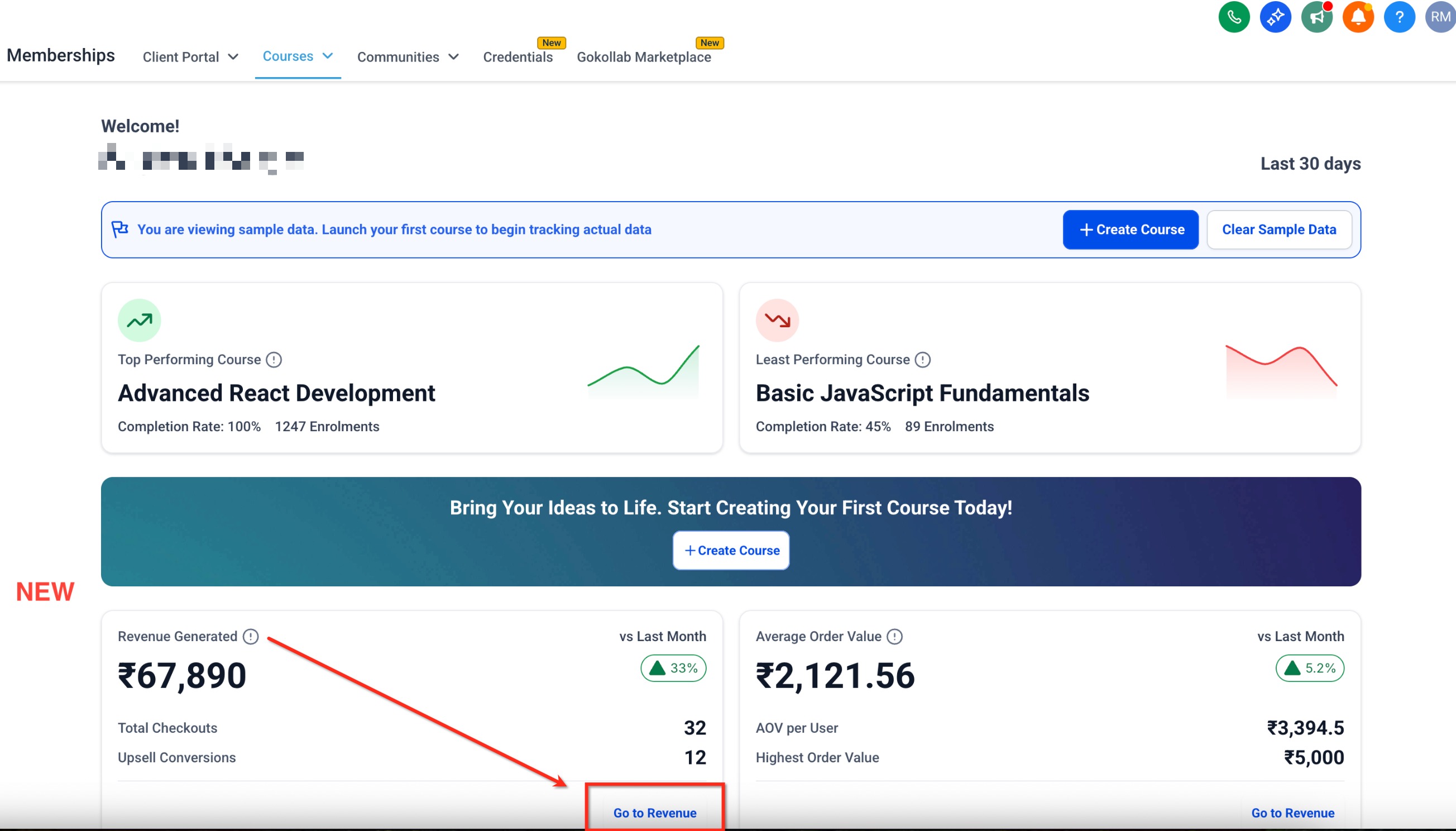
Snapshot of earnings in the last 30 days:
Revenue Generated ($) – total revenue.
vs Last Month – percentage change.
Total Checkouts – number of purchases.
Upsell Conversions – additional sales.
Click Go to Revenue for detailed breakdowns.
Average Order Value (AOV)
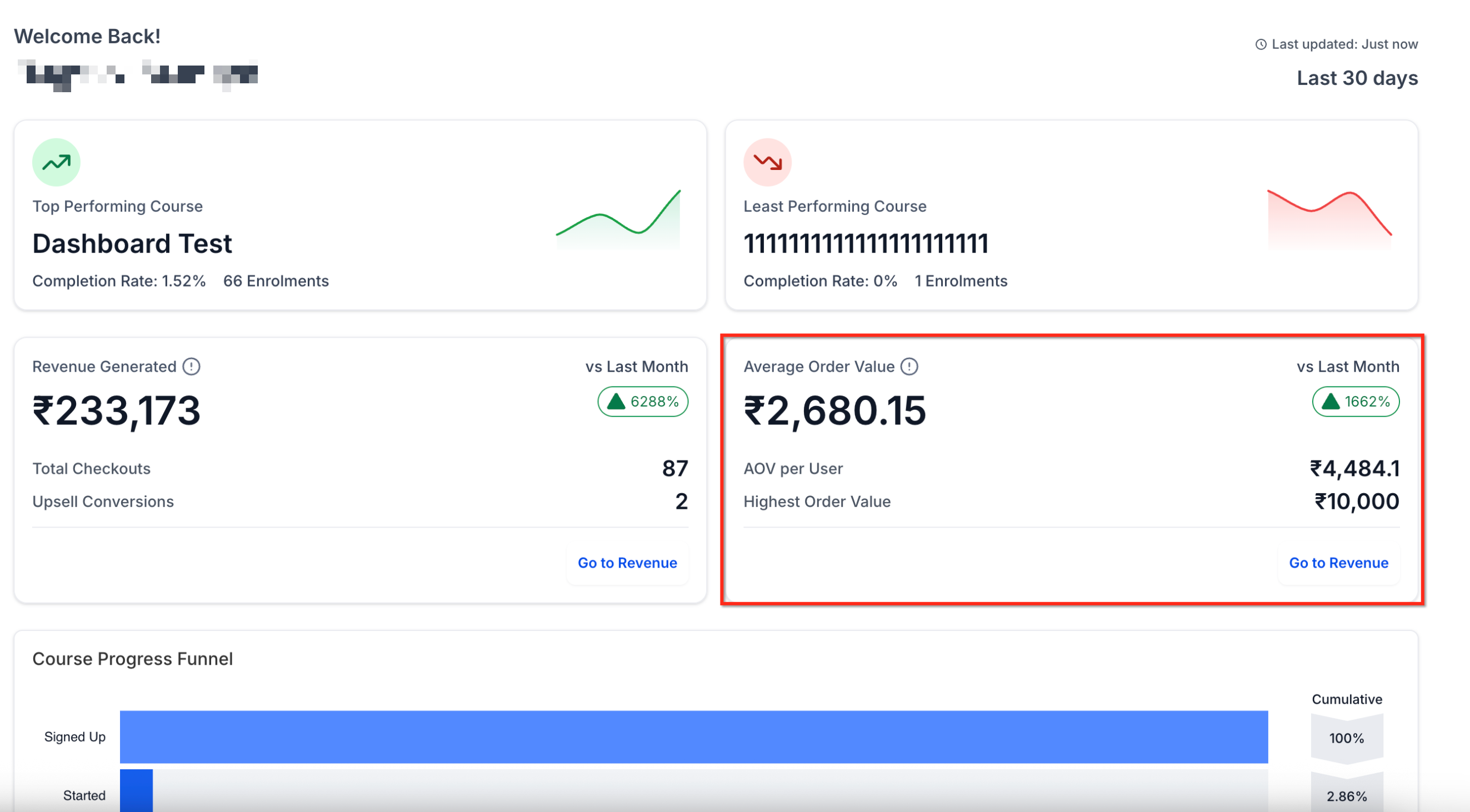
Shows revenue per learner:
AOV per User – total revenue ÷ total learners.
Highest Order Value – largest single transaction.
vs Last Month – percentage change.
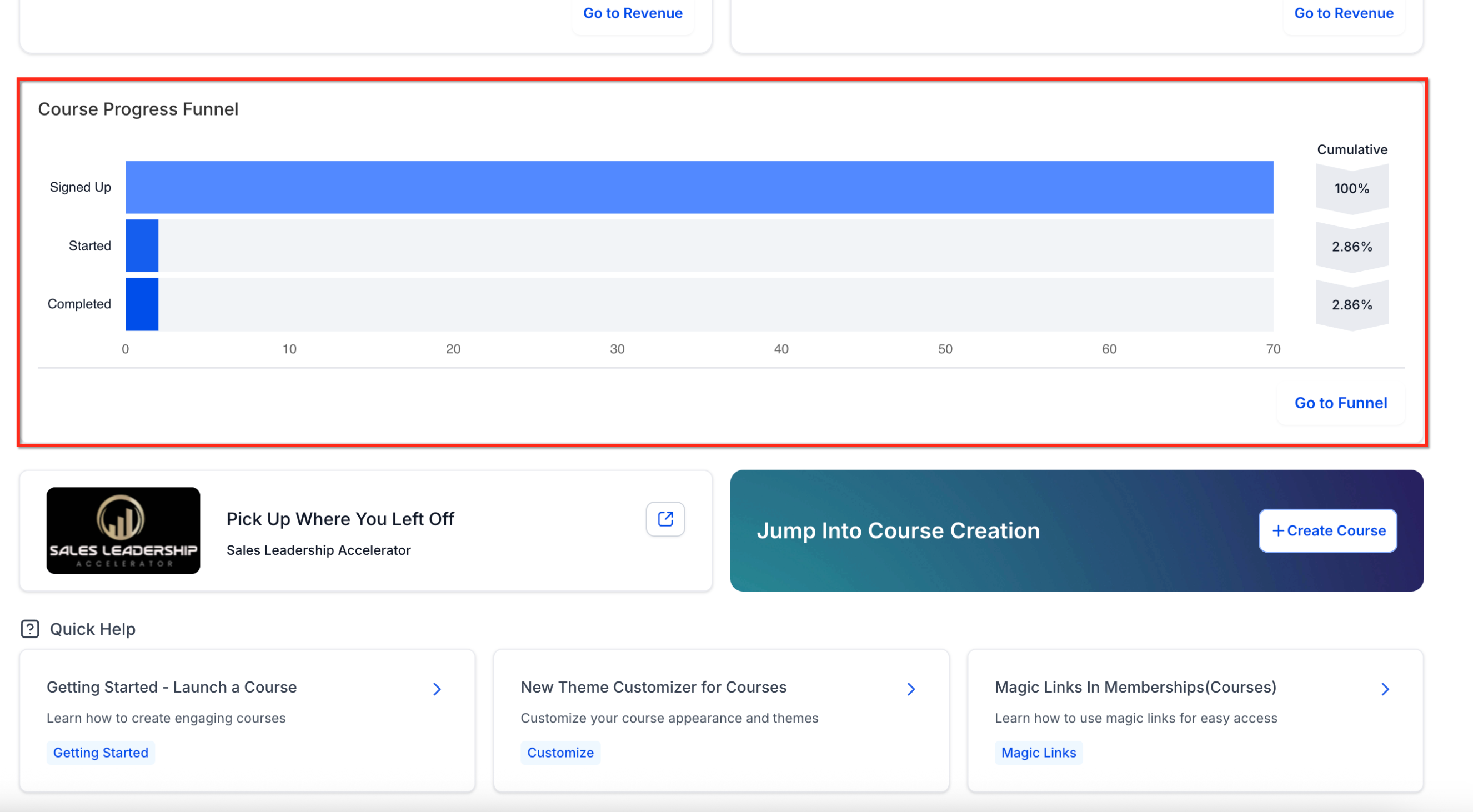
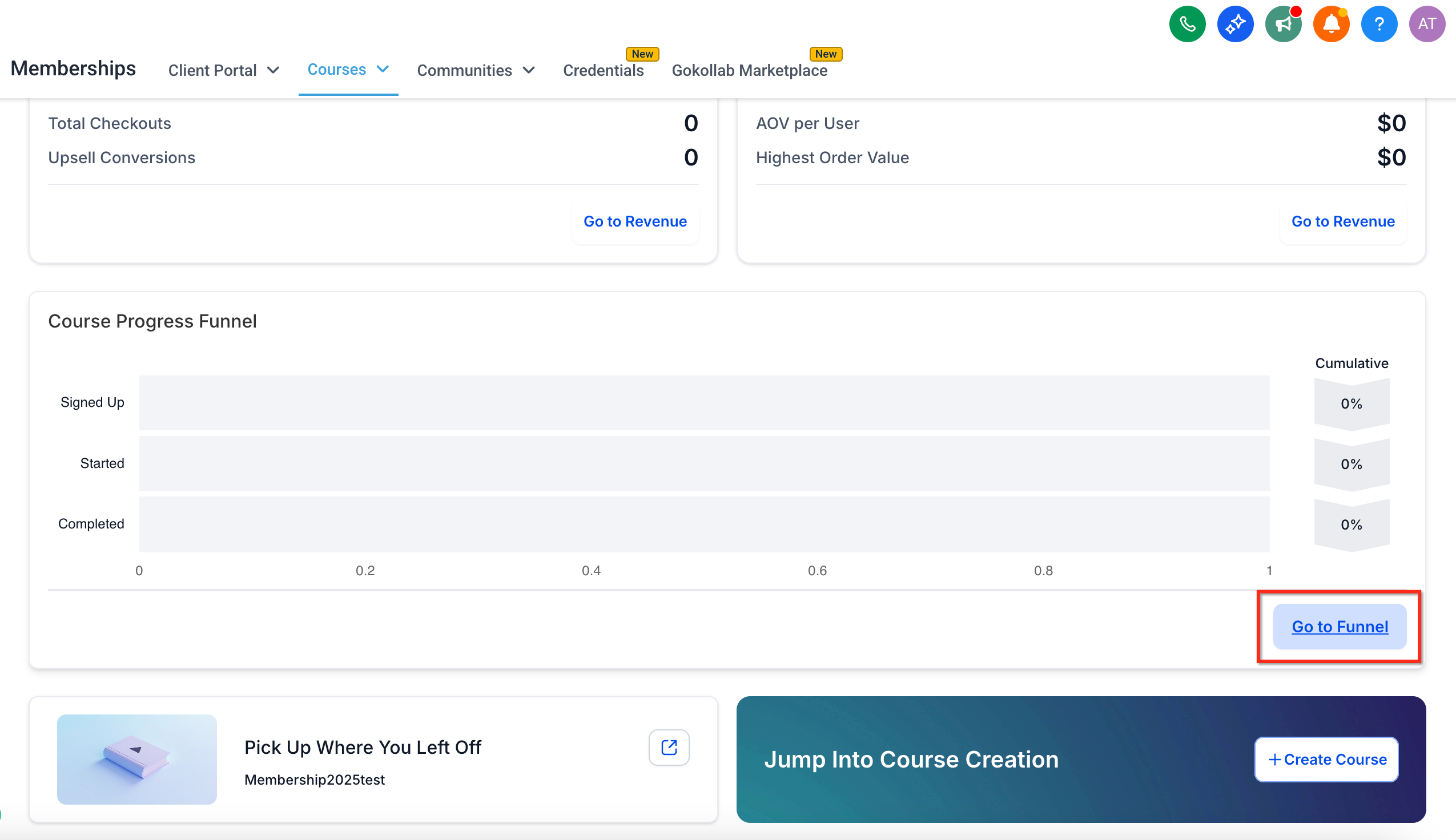
Course Progress Funnel
Tracks learner journey:
Signed Up → Started → Completed
Cumulative percentages show progression through the course.
Click Go to Funnel for learner-level analytics and export options.
Step 3: Using Dashboard Insights
Focus on Top vs. Least Performing Courses to prioritize improvements.
Monitor Revenue and AOV trends to evaluate pricing and promotions.
Review the Course Progress Funnel to identify drop-off points and optimize content.
Step 4: Optional Customization
Hide sample data: Click ••• → Remove Sample Data.
Jump into Revenue or Funnel cards for more detailed analytics.
Repeat analysis daily or weekly (data refreshes every six hours).
Frequently Asked Questions
Q: Do I need to migrate anything to use the dashboard?
No. All existing course data is automatically updated.
Q: Why don’t I see any revenue data?
Revenue appears only after at least one paid checkout via Tekmatix Payments or Stripe.
Q: Can I export dashboard data?
Yes. Click Export → CSV to download 30-day aggregates.
Q: Is the dashboard mobile-friendly?
Yes, it is fully responsive on tablets and phones.
Q: Can I manage multiple courses at once?
Yes, use Kollab Studio for bulk management like publishing, pricing, and updates.
Next Steps
Access your Tekmatix Courses Dashboard daily to monitor course performance.
Identify underperforming courses and adjust content or marketing strategies.
Track revenue and AOV trends to optimize pricing and promotions.
Review learner drop-off points in the Course Progress Funnel and improve completion rates.
Train your team to interpret and act on dashboard insights for smarter decisions.

Copyright © 2026 TekMatix. All rights reserved | [email protected]